How to set up residential proxy step by step
A residential proxy routes work traffic through a real residential IP for lawful business tasks in the USA. When you know how to set up residential proxy correctly, sessions stay stable and easier to control. It helps with QA, ad review, research, $ price checks, and localized content testing. A clean setup separates business checks from personal browsing. Using nsocks proxies means you confirm that your activity follows applicable US law and website rules.
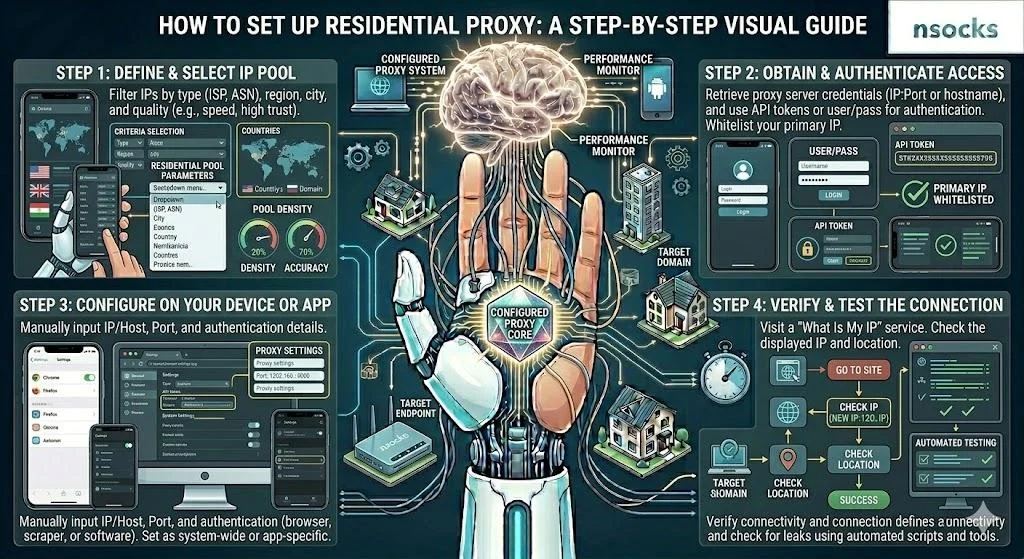
What is a residential proxy and how does setup work
A residential proxy is an ISP-based endpoint used by a browser, app, or testing tool. To start how to set up residential proxy safely, take exact values from the proxy dashboard: server, port, protocol, login, and password. The basic logic is simple: your device connects through the selected endpoint, while your account controls location and access.
| Protocol | Best use | Required values | Note |
|---|---|---|---|
| HTTP | Web checks | Server, port, login, password | Regular pages |
| HTTPS | Secure sessions | Server, port, login, password | Encrypted traffic |
| SOCKS5 | Apps and tools | Server, port, login, password | Flexible use |
Copy values directly from your account panel. One wrong character can break the connection.
What you need before setting up a proxy
Prepare all details before changing any setting. A clean proxy configuration starts with matching the IP port number to the selected protocol.
- ✅ Server address or IP
- ✅ Port
- ✅ Username
- ✅ Password
- ✅ Proxy type
- ✅ Target location
- ✅ Browser or device profile
Keep credentials private and use one profile for one task.
Residential proxies vs VPN setup
A proxy and a VPN both route traffic, but they are configured differently. For focused testing, proxy server setup is often more precise because it can apply to one browser, app, or profile.
| Factor | Residential proxy | VPN |
|---|---|---|
| Coverage | Browser, app, or tool | Whole device |
| Location | More specific | Broader |
| Best fit | QA and research | General privacy |
This helps teams work cleanly. Different specialists can use separate profiles without changing the full device network.
Common setup mistakes to avoid
Many users look for how to use a proxy server after the first error, but most issues are basic. Wrong protocol, copied spaces, old credentials, cache, or weak Wi-Fi often cause failed checks.
- ❌ Using old credentials
- ❌ Choosing the wrong protocol
- ❌ Testing only one page
- ❌ Ignoring browser cache
- ❌ Switching networks during checks
💡 Keep a note with purpose, owner, location, protocol, and last test date.
How to set up residential proxy on Windows
Windows is a good starting point because its network menu is easy to find. For desktop work, how to set up residential proxy starts with deciding whether you need system settings or a browser-level profile.
- Open Windows Settings.
- Go to Network and Internet.
- Select Proxy.
- Turn on manual mode.
- Enter server and port.
- Save changes.
- Test in a browser.
After saving, check location, speed, and login behavior. If they are stable, move to the real task.
Configuring proxy settings in Windows
To understand how to change proxy settings safely, close extra apps and use the active profile only. Enter the server and port exactly as shown in your account panel, then add the assigned username and password if prompted.
Do not guess the protocol. If the tool requires SOCKS5, HTTP values may fail.
Testing the proxy connection
A clean proxy setup should show the expected location, load regular pages, and avoid repeated login prompts. Start with an IP checker, then open a page that matches your US testing scenario.
Connection testing should follow every important change. Change one value, test once, and record the result.
Tips for stable desktop connections
For recurring Windows tasks, proxy server setup works best when device, browser, and credentials stay consistent. Stability also depends on your local network.
- ✅ Use strong Wi-Fi or Ethernet
- ✅ Keep one profile per task
- ✅ Clear cache before checks
- ✅ Update renewed credentials
- ✅ Restart the browser after edits
💡 If one browser fails and another works, check extensions and saved passwords.
How to set up residential proxy on macOS
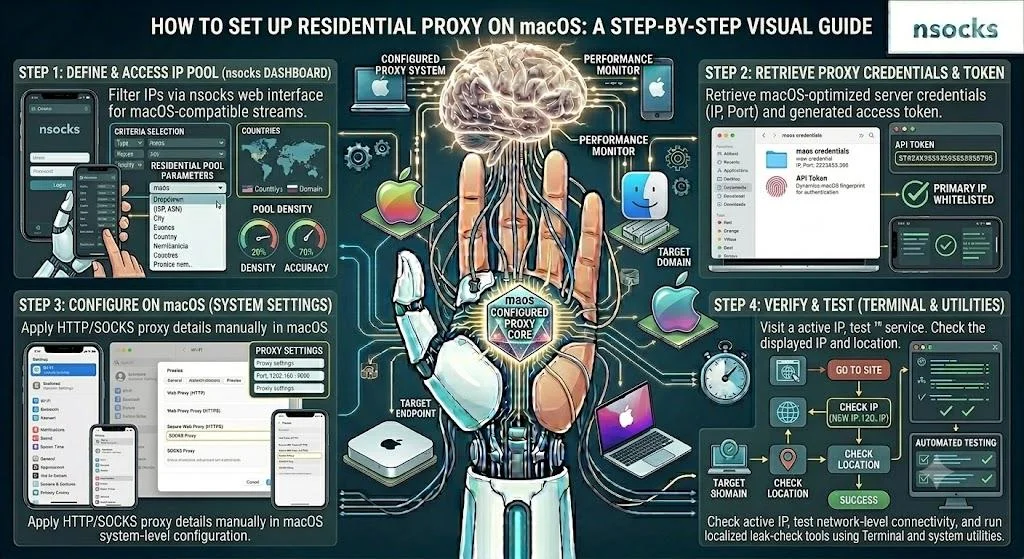
On macOS, values are attached to the selected network service. That is why how to set up residential proxy on a Mac starts with checking whether Wi-Fi or Ethernet is active.
| Parameter | Where to enter it | Note |
|---|---|---|
| Server | Network details | Copy from panel |
| Port | Protocol field | Match protocol |
| Login | Prompt or browser | Use exact username |
| Password | Prompt or browser | Avoid old values |
macOS may keep old credentials in browser storage or keychain. If login fails, remove saved data and test again.
Setting up a proxy on macOS devices
If you need how to set up a proxy on macOS, open System Settings, choose Network, select the active connection, open Details, choose the protocol, enter server and port, save, and restart the browser. This manual configuration is safer than adding values into random app fields.
Test location before using work tools. It confirms that the active network service uses the new values.
Managing proxy authentication settings
The authentication method confirms that your account can use a selected endpoint. It may be username and password, IP allowlisting, or another provider-side option. When you set up proxy server access for a team, separate credentials are easier to audit than one shared login.
Change access data when roles or projects change. This keeps workflows controlled.
Troubleshooting common macOS proxy issues
If a Mac ignores the connection, check proxy configuration before replacing all values. The cause is often the wrong active adapter, saved credentials, or browser cache.
💡 Quick fixes:
- Restart the browser
- Check active Wi-Fi or Ethernet
- Remove saved login data
- Try a clean browser profile
- Recheck protocol choice
If one app fails, inspect that app. If every app fails, return to network settings.
How to set up residential proxy on mobile devices
Mobile proxies are useful for app QA, responsive layout checks, and localized content review. To apply how to set up residential proxy on phones and tablets, remember that manual values are usually tied to the current Wi-Fi network.
| Setup area | Android | iPhone and iPad |
|---|---|---|
| Path | Wi-Fi details | Wi-Fi info icon |
| Mode | Manual | Manual |
| Login prompt | Browser or app | Browser or system prompt |
| Main risk | Menus differ by brand | Unsaved changes |
Record device model and OS version during mobile tests. This helps explain differences between desktop and mobile results.
Setting up a proxy on Android
Open Wi-Fi settings, tap the connected network, choose advanced options, switch to manual mode, enter server and port, save, and open a browser. If login appears, enter the assigned credentials.
Test a simple page first. Then check the mobile workflow you need.
Setting up a proxy on iPhone and iPad
On iPhone and iPad, open Settings, choose Wi-Fi, tap the information icon near the active network, scroll to the proxy area, select manual, enter server and port, and save. If credentials are required, iOS will ask for them when traffic starts.
Return to the same Wi-Fi before comparing results. Network switching can change the test environment.
Best practices for mobile proxy usage
Mobile stability depends on battery mode, Wi-Fi quality, app cache, and background network switching. Keep the environment simple.
- ✅ Keep the device charged
- ✅ Stay on the same Wi-Fi
- ✅ Disable aggressive battery saving
- ✅ Clear app cache when needed
- ✅ Record device and OS version
💡 For recurring checks, use a dedicated test device instead of changing a personal phone every time.
How to optimize residential proxy performance

After the connection works, optimization means measuring speed, consistency, and fit for the task. The last part of how to set up residential proxy is checking whether the selected US location and protocol match the workflow.
| Common issue | Likely cause | Practical solution |
|---|---|---|
| Slow loading | Distant region or weak Wi-Fi | Choose closer region |
| Login repeats | Old saved credentials | Remove saved data |
| Wrong location | Cache or wrong endpoint | Clear cache and verify data |
| Random drops | Network switching | Use one stable connection |
Regular checks prevent urgent troubleshooting. Even a short weekly review can catch expiring credentials or unstable local networks.
Choosing the right proxy location
Location affects latency, language, content version, and $ price display. For US tasks, choose the region closest to the expected audience and keep that choice consistent.
Write the chosen location into the task note. Reports are clearer when every result has context.
Improving connection stability
Unstable sessions usually come from weak Wi-Fi, old credentials, browser extensions, cache, or a mismatch between protocol and tool. A second proxy setup check in a clean browser profile can show whether the issue is local or account-related.
Do not change many values at once. One edit, one test, one note is the fastest way to find the cause.
Monitoring proxy performance
A simple case: a QA specialist checks a California landing page, confirms that prices appear in $, records load time, takes a screenshot, and repeats the check after 30 minutes. If location, page behavior, and speed stay consistent, the connection is suitable for that workflow.
For team use, save date, device, browser, region, task, and result. This creates a reliable history for future tests.
Frequently asked questions
What information is needed to set up a residential proxy?
You need a server address, port, username, password, and protocol type.
Can I use residential proxies on smartphones and tablets?
Yes. Most devices support manual Wi-Fi values for controlled testing.
Why is my proxy connection slow?
Common causes include distant location, weak Wi-Fi, cached data, or the wrong protocol.
Are residential proxies safe to use?
Yes, when they come from a trusted provider and are used for lawful business tasks.
How do I test if my proxy is working correctly?
Check the displayed location, open a regular website, restart the browser, and repeat the check.