How to use residential proxy with different devices
Servers are commonly used to access and monitor websites from different locations, and learning how to use residential proxy is the first step toward safer, more stable connections. Residential proxies are one of the most popular options because they offer broad functionality and make your IP address appear more natural, as if you were browsing from a specific region.
If you are not sure how to use residential proxy, this guide explains the basic setup process across different devices. Please note that servers should be used only for lawful purposes in the U.S. and in compliance with applicable regulations.

What is a residential proxy and why device compatibility matters
Residential proxies route network traffic through IP addresses assigned to real residential users. Because people use different devices and operating systems, compatibility is important for maintaining a secure and stable connection.
| Devices | Support |
|---|---|
| Windows/macOS computer | Available |
| Windows/macOS laptop | Available |
| Android tablet / iPad (iOS) | Available |
| Android smartphone / iPhone (iOS) | Available |
| Routers | Partially |
💡 Configure your device settings correctly to make sure the connection works as intended.
How residential proxies work on different devices
Here is how this type of server works on different devices:
- PCs - you can configure the server in the system settings or directly in the browser.
- smartphones - you can set it up through Wi-Fi settings or use a dedicated app.
- routers - you can configure the server through the router’s admin panel. Once set up, the server can apply to all devices connected to the network at the same time.
The key is to enter the settings correctly so that the residential proxy works reliably on your device.
Residential proxies vs VPNs for multi-device use
Here is how proxies and VPNs compare when used across multiple devices:
| Criteria | Proxy | VPN |
|---|---|---|
| Traffic | ❌Does not always encrypt data | ✅Encrypts all traffic |
| Speed | ✅Usually faster | ❌May slightly reduce speed |
| Flexibility | ✅High - allows more flexible configuration | ❌Moderate - offers less flexibility |
| Security | ❌Moderate | ✅High |
Understanding these differences will help you choose the right option for accessing websites from different regions.
Common mistakes when using proxies on devices
Many users make the same mistakes when setting up proxies on their devices. The most common issues include entering the wrong IP address or port, using an unstable or low-quality free network, or choosing the wrong connection type, such as HTTP, HTTPS, or SOCKS5. These mistakes can cause connection errors, slow performance, or failed requests. To avoid these issues, follow these tips:
- 💡 check your connection details;
- 💡 choose the correct connection type;
- 💡 use a reliable residential proxy service;
- 💡 test your connection before regular use.
Set up proxies correctly, and you can avoid most common connection problems.
How to use residential proxies on Windows and macOS
Below, you will find step-by-step instructions on how to use residential proxy on Windows and macOS.
Setting up a residential proxy on Windows
Follow these steps to set up a server on Windows:
- Open your PC’s system settings.
- Go to “Network & Internet.”
- Select “Proxy.”
- Turn on manual connection setup.
- Enter the IP address and port.
- Save the settings.
After that, you can start using residential proxies on your Windows device.
Setting up a residential proxy on macOS
Follow these steps to set up a connection on macOS:
- Open “System Preferences”.
- Go to the “Network” section.
- Select your active Wi-Fi or Ethernet connection.
- Click “Advanced”.
- Open the “connection” section.
- Enter the details: IP address, type (static residential proxy or rotating), port, username, and password.
Now, to save the settings, click “Apply” / “OK” / “Save.” The server is now ready to use.
Best practices for desktop proxy usage
Here is how to use residential proxy correctly when accessing websites from different regions:
- 💡 use stable IP addresses from reliable providers;
- 💡 test the connection speed before you start;
- 💡 make sure all connection details are entered correctly;
- 💡 monitor IP address rotation if you are not using a static residential proxy;
- 💡 avoid changing connection settings during an active session;
- 💡 store connection details in a secure location and keep them away from third parties;
- 💡 update your settings when needed.
These practices help keep the connection stable and improve the accuracy of location-based results.
How to use residential proxies on mobile devices
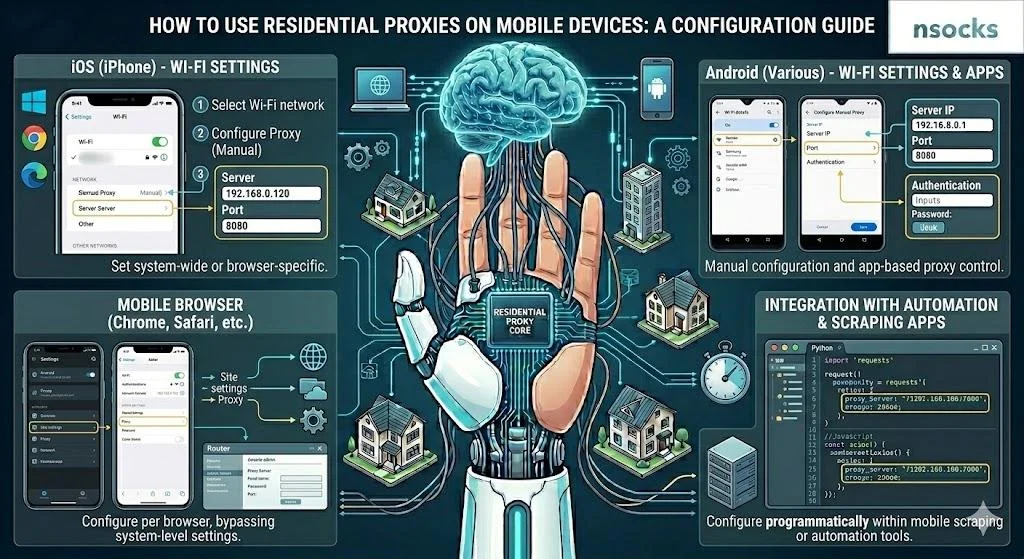
Here is how to use residential proxy on mobile devices, including smartphones and tablets. Tablet configuration follows the same Wi-Fi steps as on phones, so the process stays simple. This setup is useful for testing mobile versions of websites and apps, as well as monitoring location-based content while on the go. The table below shows server setup options for Android devices, iPhones, and iPads.
| Criteria | Android | iOS |
|---|---|---|
| Wi-Fi setup | Yes | Yes |
| Authentication support | Yes | Yes |
| System configuration | Yes | Yes |
| Convenience and simplicity | Yes | Yes |
Enter all connection details carefully and double-check them before you start using the connection.
Using residential proxies on Android
To use a residential proxy on Android, follow these steps:
- Open your device’s settings.
- Go to the Wi-Fi section and check your Wi-Fi connection.
- Select the desired network.
- Go to the “connection” section.
- Select manual configuration.
- Enter the IP address, specify the port type, and enter your username and password.
After saving the settings, you can start using the smartphone proxy.
Using residential proxies on iPhone and iPad
To set up a connection on an iPhone or iPad, follow these steps:
- Open “Settings.”
- Go to “Wi-Fi.”
- Tap the “i” icon next to the active network.
- Scroll down to “Configure.”
- Select “Manual.”
- Enter your proxy credentials.
- Save the settings.
Once the settings are saved, traffic from that Wi-Fi network will use the server you specified.
Tips for stable mobile proxy connections
To keep your mobile connection stable, follow these tips:
- 💡 check your connection speed;
- 💡 watch for battery drain. It is best to turn off the connection when you are not using it;
- 💡 test the connection regularly;
- 💡 use reliable Wi-Fi networks;
- 💡 update your settings if you switch to another provider or connection type.
Now you know how to use residential proxy on mobile devices while maintaining stable performance.
How to use residential proxies with browsers and apps
Many browsers and apps support automatic proxy configuration, so additional setup is not always required. However, in some cases, you may need to configure certain settings manually. Below, we explain how to do that.
Proxy settings in Google Chrome and Firefox
First, let’s compare server setup options in Google Chrome and Firefox.
| Features | Google Chrome | Firefox |
|---|---|---|
| Using system settings | Yes | Yes |
| Custom settings | No | Yes |
| HTTP/SOCKS support | Via the system | Yes |
| Setup instructions |
|
|
Now you know how desktop browser setup works and can configure it more easily.
Using residential proxies with business tools
Residential proxies can also be used with business tools, including SEO platforms, analytics services, and testing software. They can help check search results in different regions, monitor ads, and verify how a website performs for users in specific locations. Businesses can also use them to track competitor pricing for products and services.
Managing proxy settings safely
In this section, you will learn how to use residential proxy while protecting your data and maintaining stable performance:
- ✅ update your settings when needed;
- ✅ check the speed and stability of the connection;
- ✅ verify that all connection details are entered correctly;
- ✅ store your username and password in a secure location and keep them away from unauthorized users;
- ✅ use only the best residential proxy from reliable providers.
These measures help keep the connection secure, stable, and properly configured.
How to improve residential proxy performance

To improve the performance of a rotating or static residential proxy, follow these tips:
- use IP addresses located closer to your target region;
- check speed and network stability regularly;
- choose a reliable provider.
These steps can help improve performance, connection quality, and overall efficiency. Connection issues can still occur. The table below lists the most common problems, their possible causes, and recommended solutions.
| Problem | Possible cause | Solution |
|---|---|---|
| Slow speed | Remote server location | Select a closer region |
| Weak connection | Server overload | Change your IP address or server |
| No connection | Incorrect settings | Check the information you entered |
| High latency | Weak connection | Check your network and speed |
Keep these causes in mind so you can identify and fix issues faster.
Choosing the right proxy location
The closer the IP address is to your target website or service, the better the proxy’s speed and overall performance will be. This can also improve the accuracy of location-based results.
Reducing connection issues
If the residential proxy is slow or the connection drops occasionally, the issue may be caused by incorrect settings, low speed, or server overload. First, check the details you entered, including the IP address, port, username, and password. You can also try using a different IP address or server.
Monitoring proxy performance
To monitor performance, follow these steps:
- Connect to the server.
- Open several websites.
- Compare their loading speeds.
- Run tests at different times of the day.
- Make sure the server remains stable.
- Check whether speed changes when you switch between websites.
Run these checks regularly to make sure the server works reliably. You may need to buy residential proxies to access websites from different regions and get accurate results for research, testing, and monitoring.
Frequently asked questions
In this section, you will find answers to the most common questions about using servers on different devices.
Can I use residential proxies on smartphones?
Yes. You can configure them on Android and iOS devices through Wi-Fi settings or with dedicated apps.
Are residential proxies compatible with all browsers?
Many browsers support proxies as long as the settings are configured correctly.
Do residential proxies slow down internet speed?
They can slightly reduce internet speed because traffic passes through an additional server.
Is it safe to use residential proxies on public Wi-Fi?
It can be safe if you use a reliable provider and follow basic security practices. Avoid entering sensitive information on unsecured public networks.
What devices support residential proxy connections?
Connections are supported on desktop computers, laptops, tablets, and smartphones.