How to set proxy in mobile on Android and iPhone
Mobile browsing is part of QA, ad checks, research, and secure work. Users search for how to set proxy in mobile when they need controlled phone traffic. Correct setup protects the main IP and separates work from personal browsing. It also supports app checks and $ price reviews in US conditions. The goal is legal testing and privacy, not risky schemes. Nsocks proxies are intended for lawful use in the USA and according to platform rules.
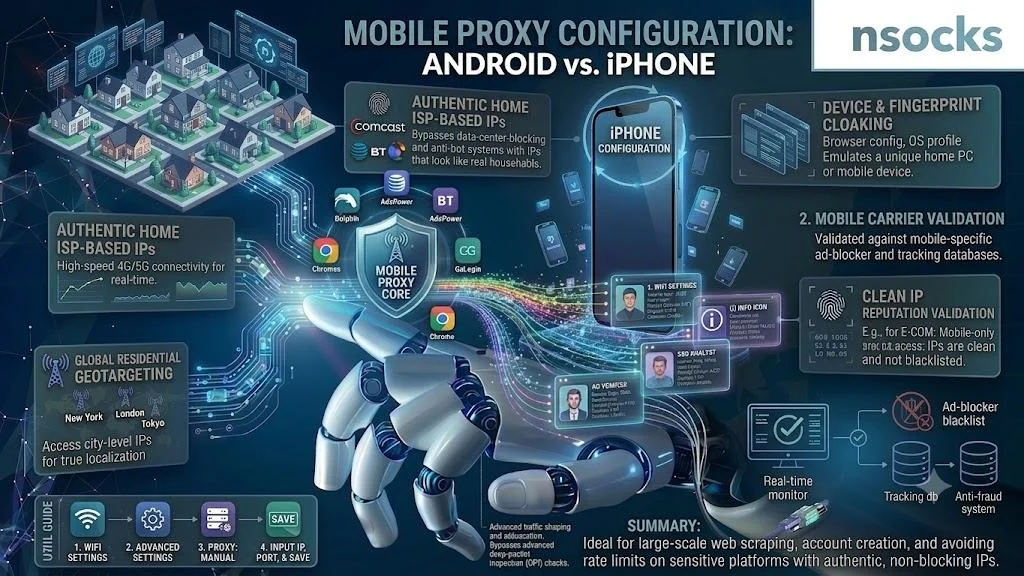
What is a mobile proxy and how does it work
A mobile proxy routes phone or tablet traffic through a selected endpoint. In practice, how to set proxy in mobile means adding host, port, protocol, and login details, then checking the session.
| Type | Mobile support | Best use | Setup style |
|---|---|---|---|
| HTTP | Yes | Web checks | Manual fields |
| HTTPS | Yes | Secure pages | Manual fields |
| SOCKS5 | App dependent | Tools | App level |
The proxy dashboard keeps access data and location together. This helps teams repeat the same flow.
What information is needed for proxy setup
Before setup, collect server address, port, username, password, and protocol. For Android proxy settings, copy the proxy hostname exactly, because one wrong symbol can block the connection.
✅ Prepare:
- Login data
- Country or city
- Protocol
- Active Wi-Fi
A short note prevents repeat errors.
Mobile proxies vs VPN connections
A VPN usually covers the whole phone, while a proxy can be more specific. If you understand how to set proxy in mobile, you can manage one Wi-Fi profile, browser, or app without changing every connection.
| Factor | Proxy on phone | VPN on phone |
|---|---|---|
| Coverage | Selected profile | Whole device |
| Control | More precise | More general |
| Best fit | QA and review | Broad privacy |
A proxy profile can belong to one task, while a VPN is better for general device traffic.
Common mistakes during mobile proxy setup
Many beginners search proxy settings Android after a failed test. Most errors come from a wrong port, mixed protocol, old password, unstable Wi-Fi, or network switching.
💡 Safe tips:
- Copy values carefully
- Restart the browser
- Test one page first
- Record device and time
Small routines make checks repeatable.
How to set proxy on Android devices
Android menus differ by brand, but the logic is similar. To learn how to set proxy on Android, start from the active Wi-Fi network and add values only there.
- Open Settings.
- Go to Wi-Fi.
- Tap the connected network.
- Open advanced options.
- Choose manual mode.
- Add host and port.
- Save and test.
Use for a first workflow check.
Setting up a proxy through Wi-Fi settings
A practical Android Wi-Fi settings flow starts from the connected network. When people type proxy settings Android, they usually need the manual option inside the Wi-Fi profile. Add values, save, and reopen the browser.
If login appears, enter the assigned username and password.
Configuring authentication settings
Authentication confirms that the device can use the endpoint. With Android proxy settings, errors often come from old prompts, extra spaces, or a password from the wrong profile.
💡 Update shared credentials after a project ends.
Troubleshooting Android proxy issues
If you know how to set proxy on Android but the phone still fails, check the active Wi-Fi name first. Some devices save values only for one network.
💡 Reconnect Wi-Fi, clear saved prompts, reenter host and port, and test another browser.
If one app fails, it may ignore system values.
How to set proxy on iPhone and iPad
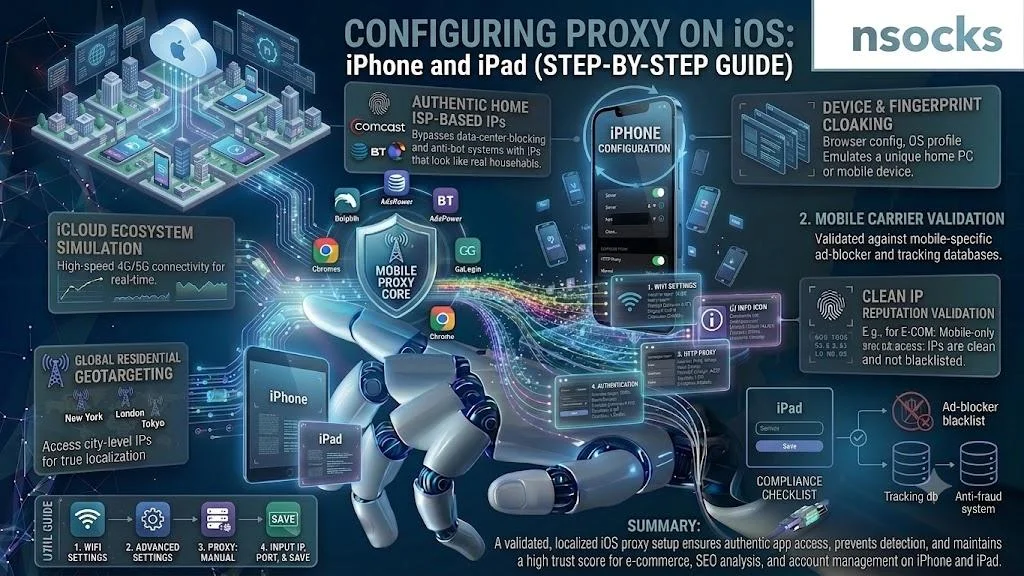
Apple devices use Wi-Fi based configuration, so how to set proxy in mobile on iOS is usually simple. Edit the active network, save changes, reopen the browser, and test the same page.
| Area | Android | iPhone and iPad |
|---|---|---|
| Network | Connected Wi-Fi | Connected Wi-Fi |
| Mode | Manual | Manual or auto |
| First test | Web page | Web page |
This makes both systems easy to compare. Teams can use one internal checklist.
Manual proxy setup on iPhone
To follow how to set proxy on iPhone, open Settings, tap Wi-Fi, choose the information icon, select manual, enter server and port, then save. This iPhone network setup should be tested in Safari or another work browser.
Use only assigned work credentials.
Using automatic proxy configuration
Automatic setup uses a configuration URL instead of separate fields. In many teams, iOS proxy settings stay manual for quick tests, while managed iOS configuration fits repeated use. The manual proxy entry is easier for beginners.
Choose the method that matches your device policy.
Tips for stable proxy connections on iOS
Review iPhone proxy settings after network changes, software updates, or repeated login requests. iOS stores values by Wi-Fi network.
✅ Best practices:
- Stay on one Wi-Fi
- Keep battery charged
- Clear old website data
- Use a work browser
Consistency matters more than frequent edits.
How to use proxies safely on mobile devices
Safe use starts with a clear task. Teams learning how to set proxy in mobile should focus on lawful QA, ad verification, localized page review, and market research in the USA.
Choosing a reliable proxy provider
A reliable provider should offer clear locations, stable access, $ pricing, simple credentials, and support. Good documentation helps avoid basic errors. Test one region first, then scale if the workflow is stable. Use when the region and access type match your task.
Improving mobile connection stability
For iOS work, iPhone proxy settings should be checked if the device changes Wi-Fi or asks for login again. Weak signal, cache, battery saving, and background tools can affect speed.
💡 Use strong Wi-Fi, avoid network switching, keep one browser profile, and record speed and location.
Monitoring proxy performance on mobile
After applying how to set proxy in mobile, check location, load time, login behavior, and page content. For example, a QA specialist testing a New York landing page records device, time, screenshot, and $ price display.
If the second test gives the same result, the setup is stable enough. Use for repeated team checks.
Common mobile proxy issues and solutions
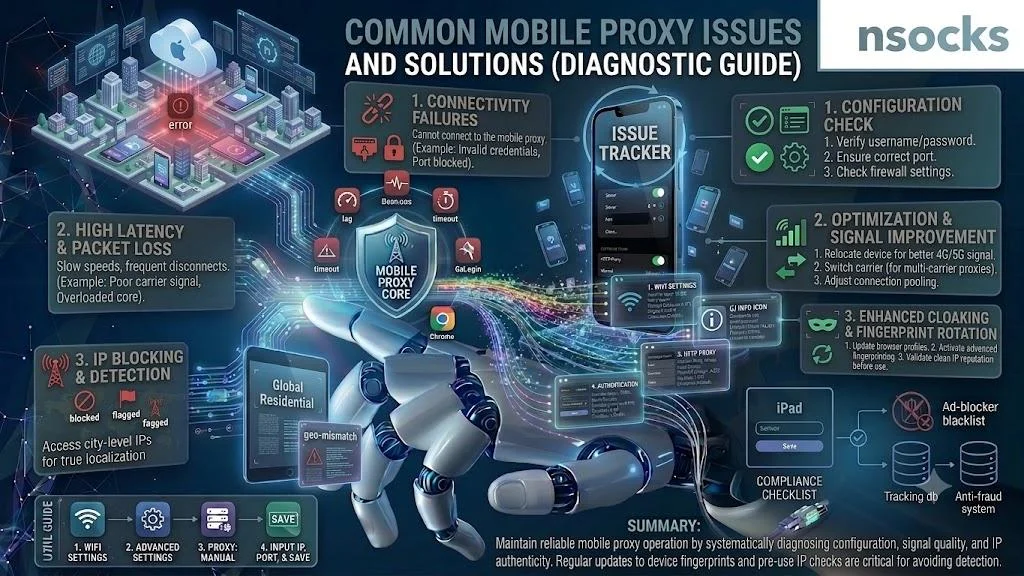
Even correct values can fail when cache, Wi-Fi, or credentials are not aligned. Change one factor at a time and test again.
| Problem | Possible cause | Solution |
|---|---|---|
| Slow pages | Weak Wi-Fi | Use a stronger network |
| Login repeats | Old password | Clear saved data |
| No connection | Wrong port | Recheck values |
| Drops | Network switching | Stay on one network |
This keeps support requests clear.
Slow internet connection
Slow speed often comes from distance, local Wi-Fi, carrier routing, or a busy device. Test a simple page first, then compare it with the target page.
If every page is slow, check the network before replacing credentials.
Authentication and login errors
Login errors usually mean the username, password, protocol, or active profile does not match. Remove old prompts before adding new credentials.
Separate work profiles reduce confusion.
Proxy disconnects and unstable connections
Unstable work often means the phone changed networks, lost Wi-Fi strength, or another tool interrupted the session. Reconnect, restart the browser, and repeat the same test.
💡 Run 2 checks before reporting a failure.
Frequently asked questions
Can I use proxies on both Android and iPhone?
Yes, both platforms support Wi-Fi network options.
What information do I need to set up a mobile proxy?
You need host, port, username, password, and protocol.
Why is my mobile proxy connection slow?
Common reasons are weak Wi-Fi, distance, cache, or wrong values.
Are mobile proxies safe for public Wi-Fi?
They can add separation, but secure websites still matter.
What is the difference between manual and automatic proxy setup?
Manual uses fields. Automatic uses a configuration URL.